First run and onboarding
zarlcode is designed to start in the workspace you want to work on. Normal first use is interactive: launch the TUI first, then make choices there.
Install and launch
Section titled “Install and launch”brew install zarldev/tap/zarlcode
cd /path/to/your/workspacezarlcodeFrom a source checkout, use go tool task zarlcode or go run ./zarlcode/cmd.
The go install package currently produces a binary named cmd, so use a release,
Homebrew, or the task from a checkout instead.
On an ordinary launch, zarlcode creates its local home and workspace state as needed.
You do not need to run zarlcode init or set a credential with a CLI command before
opening the app.
The first-run screen
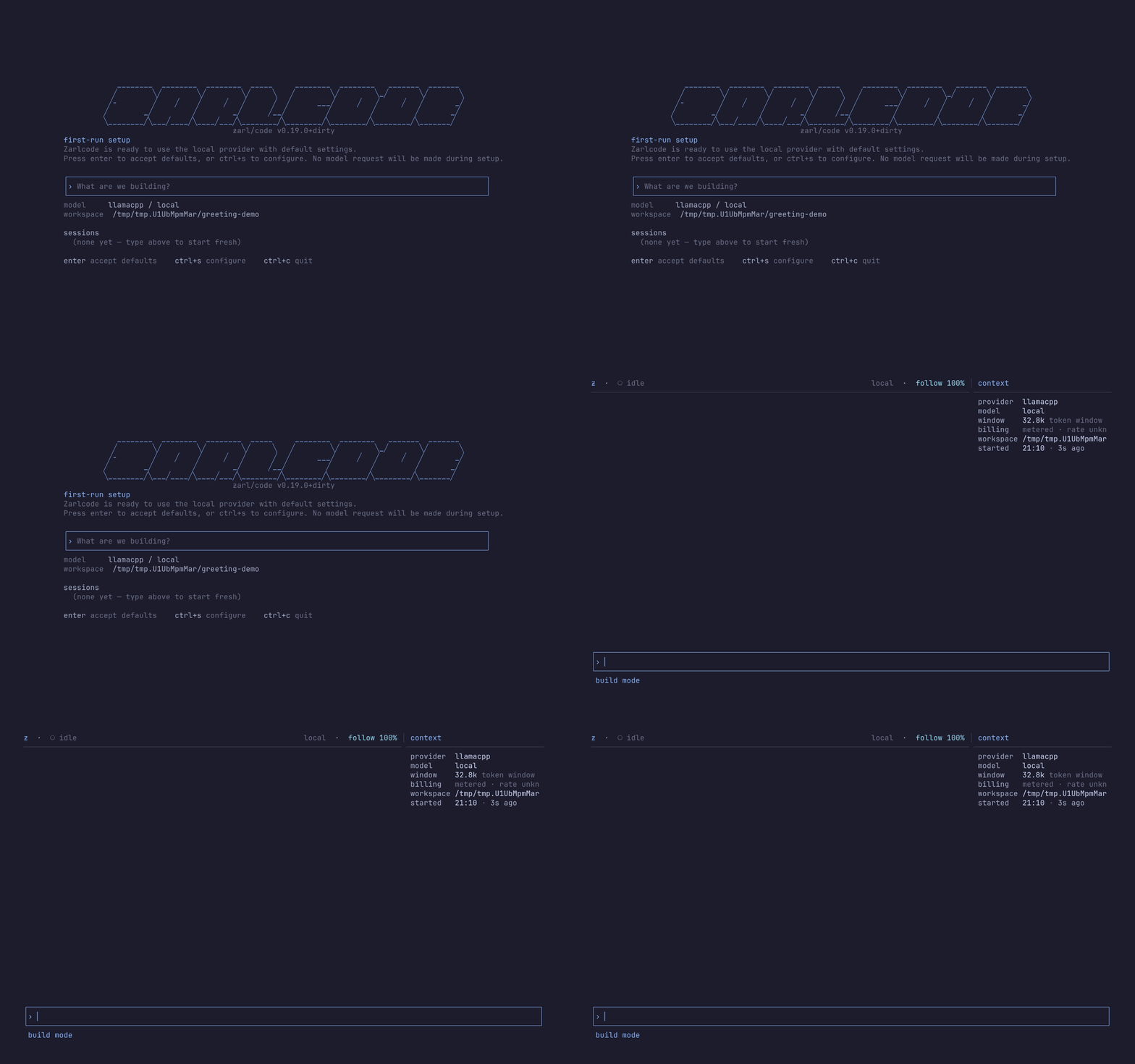
Section titled “The first-run screen”When no usable provider is selected, zarlcode opens its first-run setup screen instead of the normal session picker. Setup never makes a model request.
- Press
Enterto keep the local defaults when they are usable. - Press
Ctrl+Sto open settings and configure a provider now. - Press
Ctrl+Cto leave rather than commit setup.
Accepting local defaults is useful when an Ollama, llama.cpp, LM Studio, or other compatible local model server is already running. zarlcode configures a model endpoint; it does not start a model server for you. The choice is saved as a global default, so later workspaces inherit it unless you set a workspace-specific value.
Configure a cloud provider from the TUI
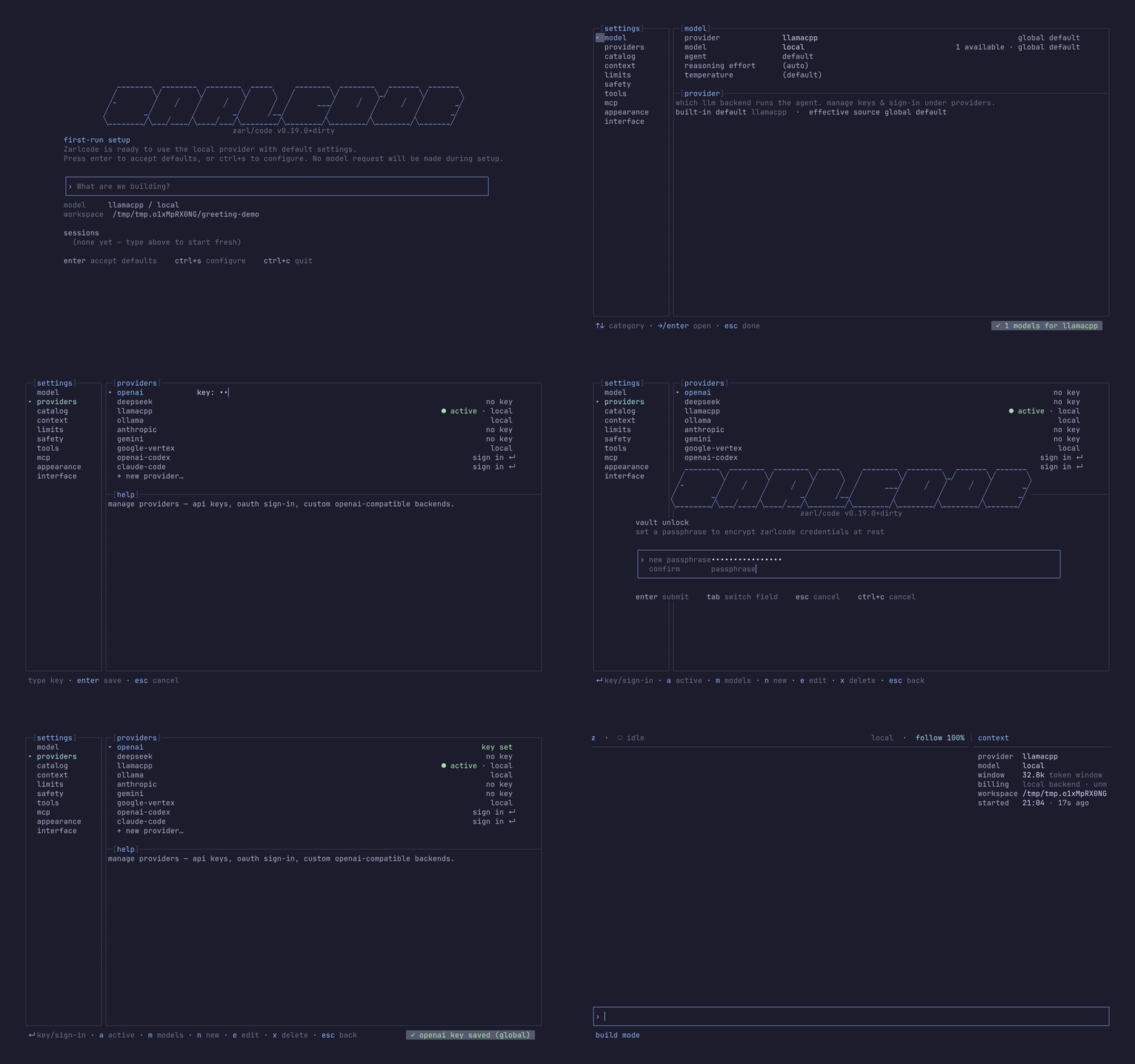
Section titled “Configure a cloud provider from the TUI”Press Ctrl+S, choose Providers, then add or select the provider you want to
use. The panel supports API-key providers, OAuth sign-in where the provider offers it,
and custom OpenAI-compatible endpoints. After selecting a provider, use Ctrl+E
to choose a model.
The first time you save a secret, zarlcode guides you through passphrase protection for the local credential vault. The passphrase protects credentials; it is not requested when you only accept local defaults and do not save a secret. See Providers and credentials for the full storage, unlock, and backup model.
After setup, type a task in the composer and press Enter. Sessions open in Build mode,
so press Shift+Tab first when you want a read-only investigation and plan. Review the
proposal, then press Shift+Tab again to let the agent build. The next page walks through
that loop: Your first workflow.
If you have already configured zarlcode, launch opens the usual intro screen: enter a new task or select a saved local session to resume. Sessions and transcripts explains what is retained.
Automation, credential subcommands, launch flags, and headless operation are supported, but are deliberately not required for first use. See Automation and CLI when you need them.